Get reconciling. In five steps.
Prepare your files, upload, map the columns, review discrepancies, export the fix list. That's the whole loop — usually under five minutes from browser tab to board-ready report.
Five steps, in detail.
Each step is reversible and reproducible. If something looks off, go back — nothing is persisted until you export.
Prepare your files
ReconcileIQ offers multiple ways to get your transaction data. Choose the method that works best for your setup.
Direct API integration (recommended)
Connect your accounting software directly:
- QuickBooks Online — real-time sync
- Xero — direct connection
- Sage — seamless integration
- Pandle — complete API
Benefit: one-click fix push back to your accounting software.
File-based processing
Export files manually:
- CSV / Excel exports from any system
- PDF converter for 17+ UK banks
- Works with any bank or accounting software
Benefit: maximum compatibility and control.
Method 1: file export requirements
If using file-based processing, you'll need two separate files:
- Bank statement file: downloaded from your online banking portal (CSV, Excel, or PDF for supported banks).
- Accounting records file: exported from your bookkeeping system (e.g., Xero, QuickBooks, Sage).
Supported file formats:
- CSV / Excel:
CSV,XLSX, orXLSfrom any bank or accounting software. - PDF converter: PDF bank statements from 17+ UK banks (Lloyds, HSBC, NatWest, Mettle, Monzo, etc.) — automatically converted to CSV.
File requirements checklist:
- Date range: both files should cover the exact same time period.
- Headers: the first row should contain clear column headers (e.g., "Date", "Amount", "Description").
- Essential columns: each file must contain columns for:
- Transaction date: when the transaction occurred (e.g.,
Date,Transaction Date,Posted). - Transaction amount: either a single column with positive/negative values or separate columns for money in/out (e.g.,
Amount,Credit/Debit,Money In/Money Out). - Transaction description: details about the transaction (e.g.,
Description,Narrative,Reference).
- Transaction date: when the transaction occurred (e.g.,
- Optional fee column: if your statement has a separate column for fees, ReconcileIQ handles it (e.g.,
Fee,Charges). Fees are treated as negative amounts (outflows).
Example accepted headers:
| Column type | Common header examples |
|---|---|
| Date | Date, Transaction Date, Posted, Value Date |
| Description | Description, Narrative, Details, Reference, Memo |
| Single amount | Amount, Value, Total, Gross |
| Money in (credits) | Credit, Credit Amount, Money In, Deposits |
| Money out (debits) | Debit, Debit Amount, Money Out, Withdrawals |
| Fee (optional) | Fee, Fees, Charges, Commission |
Upload files to ReconcileIQ
Go to the ReconcileIQ dashboard (bankreconciler.app/tool):
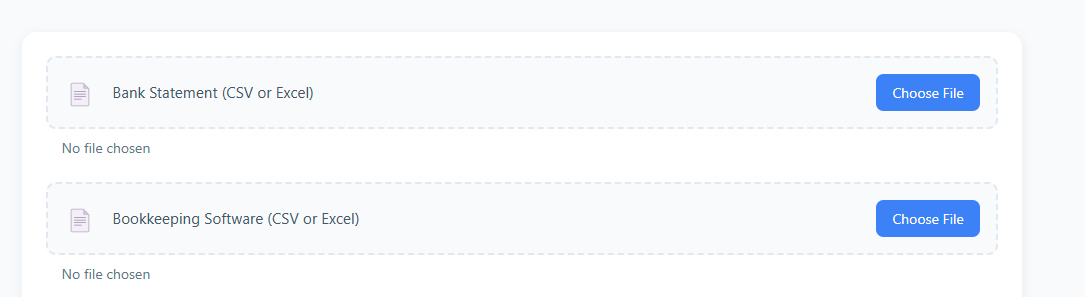
- Locate the "Bank Statement" upload area.
- Click "Choose File" or drag & drop your bank statement file (CSV, Excel, or PDF) onto the area.
- If uploading a PDF from a supported UK bank, ReconcileIQ converts it to CSV automatically.
- Repeat for the "Bookkeeping Software" upload area using your accounting records file.
- Once both files are selected, click the "Reconcile Statements" button to proceed to mapping.
Map columns & set currency
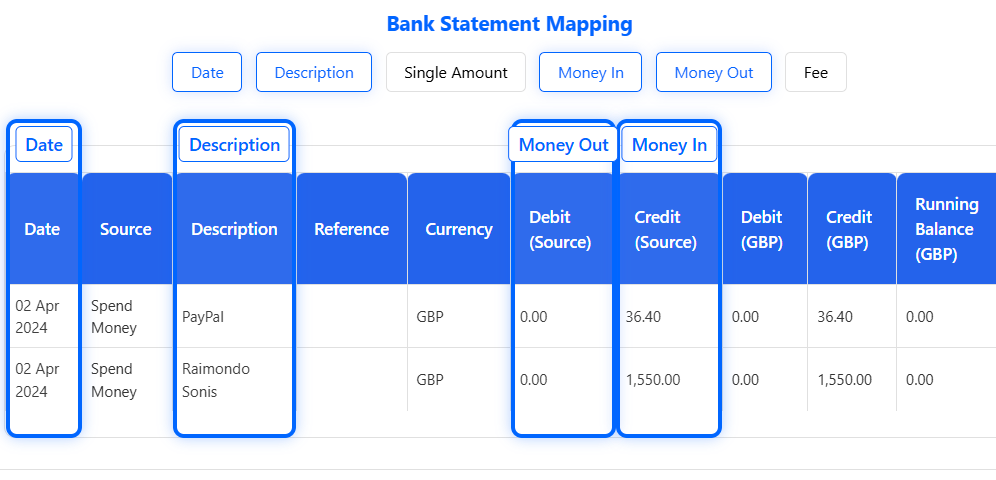
This step tells ReconcileIQ where to find the necessary data in your files.
- Automatic detection: ReconcileIQ identifies Date, Amount (or Money In/Out pair), and Description columns based on common headers, and highlights its suggestions.
- Verify mapping: check that the highlighted columns (blue overlays) correctly correspond to Date, Amount/Pair, and Description in both files (Bank and Books). Review the sample rows shown.
- Adjust if needed: if the automatic mapping is wrong, click and drag the blue header labels (e.g., "Date") to the correct column header.
- If you use separate Debit / Credit columns, use the "Map Money In / Money Out" toggle and map both.
- Map optional fee: if you have a separate Fee column, click the "Map Fee" toggle and drag the "Fee" label to that column.
- Set currency: use the dropdown at the top to select the file currency (GBP, EUR, or USD). This ensures amounts are interpreted correctly.
- Confirm: when satisfied, click "These columns are correct".
Reconcile & review results
Once columns are confirmed, ReconcileIQ processes your files and displays results. Focus on the key discrepancy tabs:
-
Missing from BooksTransactions found in your bank statement but not matched in your accounting records. These typically need to be added to your books.
-
Extra in BooksTransactions in your accounting records but not in the bank statement. Investigate these — common causes are timing differences (e.g., cheques not cleared), duplicate entries, or errors.
-
Overview & insightsSummary, charts comparing totals, and insights or patterns observed (depending on plan).
Use the tabs at the top of the results page to switch between these views.

Export & take action
ReconcileIQ identifies discrepancies; the final step is acting on them.
- Export reports: at the bottom of the 'Missing' and 'Extra' tabs, use the "Export PDF" or "Export CSV" buttons.
- CSV is useful for importing missing transactions into accounting software.
- PDF provides a formatted report for records or sharing.
- Action missing items: use the exported 'Missing from Books' list to add these transactions accurately into your accounting system.
- Investigate extra items: review the 'Extra in Books' list.
- Timing differences? (e.g., cheque issued but not cashed) — usually no immediate action.
- Duplicates or errors? — correct or delete them in your accounting system.
- Verify (optional): after making corrections, export a fresh accounting file and re-run the reconciliation to confirm everything matches.
Ready for more detail?
This guide covered the basics. Dive deeper into fuzzy matching, pattern analysis, LedgerIQ, and troubleshooting with the full user guides.